Basedash for Excel: what it is, how it works, and why it matters for AI offices
See how Basedash for Excel turns spreadsheets into dashboards and back again—helping Nonilion-style AI offices move faster with trusted reporting.
N
Nonilion Editorial
Jun 26, 2026 · 11 min read
Basedash for Excel: what it is, how it works, and why it may matter for AI offices
Basedash for Excel appears to focus on a simple two-way workflow: drop in a spreadsheet, get a dashboard, and export the data back to Excel when you need to keep working there. Based on the analyzed sources, that places it within a broader shift toward AI-native Business Intelligence—one where teams may move more quickly from spreadsheet data to shared reporting and back again.
For an AI office like Nonilion, that can matter because spreadsheets often function as working files for planning, reporting, and review. They can hold inputs, snapshots, and numbers that humans and AI agents may both need to reference. In that context, Basedash for Excel is interesting not only as a BI feature, but as an example of how human + AI collaboration can fit into planning, analysis, and asynchronous execution.
What is Basedash for Excel, and why is it getting attention now?
Basedash describes itself as an for teams that want answers, dashboards, and reporting workflows without heavy BI setup. The Excel feature extends that idea to spreadsheets.
FAQs
What is Basedash for Excel in practical terms?
It’s a workflow that lets you upload an .xlsx file, have Basedash analyze it, generate dashboards or charts, and then export chart data back to Excel when you need to keep working there.
How is Basedash for Excel different from just using Excel alone?
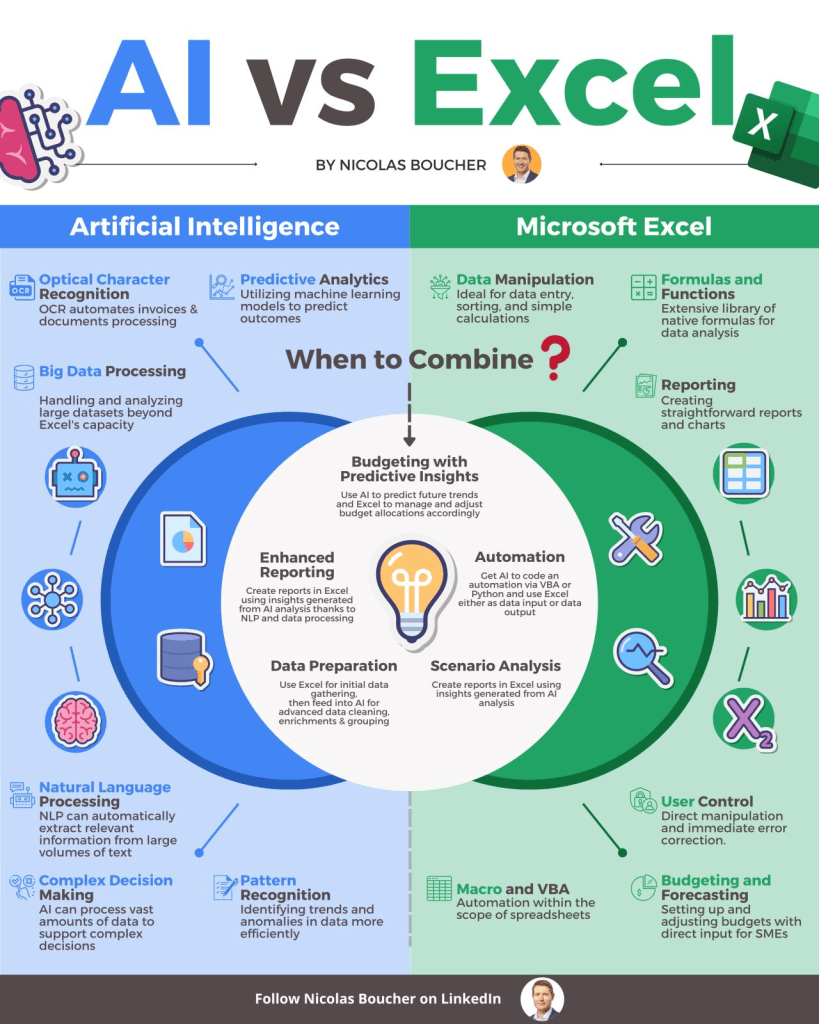
Excel is best for direct editing and spreadsheet work. Basedash adds a faster BI layer on top: natural-language exploration, dashboard creation, and easier sharing, while still letting you return to Excel afterward.
Why would a team use Basedash for Excel instead of a traditional BI tool?
It can reduce setup time and make reporting more accessible. Teams can turn a spreadsheet into a dashboard quickly, ask questions in plain language, and avoid some of the manual work or SQL dependence common in traditional BI workflows.
Where does human review still matter in an AI-generated Excel workflow?
Human review is still important for checking the source file, validating the dashboard against the real question, and confirming that exported data is ready for planning or approval. AI can speed up analysis, but people still need to verify meaning and trust.
How does Nonilion help with workflows like Basedash for Excel?
Nonilion helps teams turn spreadsheet-based work into an AI-assisted collaboration process. In practice, that means structuring the workflow so a file can be uploaded for analysis, reviewed in dashboard form, shared asynchronously, and then routed back into Excel or into an approval step when needed.
According to the source material, the core workflow is straightforward:
upload an .xlsx file into the Basedash agent
it reads and analyzes the data
it builds charts and dashboards
you can export chart data back to .xlsx
That two-way positioning is what makes it notable. Instead of forcing teams to choose between spreadsheets and dashboards, it aims to connect them.
The attention around it also fits the broader messaging in the sources: “Create dashboards with a prompt,” “Ask anything about your business,” and “Build charts, dashboards, and reports in seconds.” In other words, the product is being framed as a faster path from data to decision.
How Basedash for Excel works: from .xlsx upload to dashboard and back to Excel
The workflow described in the sources is simple, but important.
1. Upload a spreadsheet
The user drops an .xlsx file into the Basedash agent.
2. The agent reads and analyzes the data
Basedash uses the spreadsheet data to build charts and dashboards.
3. Dashboards are created quickly
The product is positioned as a way to create reports and dashboards in seconds, with natural-language interaction and no SQL required.
4. Export back to Excel
When a team wants to keep working in spreadsheets, chart data can be exported back into .xlsx.
That two-way loop matters. It means Excel is not treated as the end of the workflow or as separate from BI. Instead, it becomes one part of a larger analysis-and-sharing cycle.
For teams working in an AI office environment, that kind of loop can be useful because it lets an AI agent do the first-pass analysis while humans retain the ability to review, revise, and continue working in the format they already use.
Why the Excel-to-dashboard workflow may matter for teams, not just analysts
The sources emphasize team use, trusted answers, and reporting workflows. That suggests the value is not limited to analysts.
A spreadsheet-to-dashboard workflow may matter for teams because it can reduce friction in several places:
less manual dashboard setup
less dependence on SQL for routine reporting
less back-and-forth between spreadsheet exports and BI tools
faster movement from a file to a shared view
The LinkedIn source also points to a broader pattern: using natural language to create reports, dashboards, charts, and business answers without needing to involve a developer or assemble CSVs and exports. That is a team workflow story, not just an analyst workflow story.
For Nonilion-style collaboration, this can mean a spreadsheet is not just a private file, but a shared artifact that an AI agent can analyze, a teammate can review, and a manager can approve.
The broader shift: moving from spreadsheet analysis to shared decision-making
The biggest change suggested by the sources is not simply “Excel gets dashboards.” It is that analysis becomes more shareable and faster to act on.
Basedash’s positioning around trusted metrics, reporting workflows, and dashboards built from prompts points toward a decision-making layer rather than a static reporting layer. The goal is not just to inspect numbers. It is to help teams answer questions like:
what is changing?
what should we look at next?
what data should move into a report or dashboard?
what should be exported back into Excel for further work?
That is where the human + AI collaboration angle becomes important. AI can accelerate the first draft of analysis, but humans still decide what matters, what is trusted, and what needs review.
In an AI office, this can change the role of spreadsheets. They are no longer only analysis tools. They become coordination tools for shared decisions.
Where human review still matters in AI-generated Excel workflows
The source material is strong on speed and automation, but it also implies a need for trusted answers and trusted metrics. That is where human review remains essential.
Even if an AI agent can read a spreadsheet, build charts, and generate dashboards quickly, teams still need people to check:
whether the uploaded file is the right source
whether the dashboard reflects the intended question
whether the exported data should be used as-is or revised
whether the numbers are ready for planning or approval
This is especially important in AI office workflows, where an AI agent may draft the analysis but a human must validate the output before it becomes part of a meeting follow-up, a planning document, or an approval packet.
So the practical model is not “AI replaces spreadsheet work.” It is “AI handles the repetitive analysis layer while humans keep oversight of meaning, trust, and action.”
What this may mean for AI offices like Nonilion: spreadsheets as collaborative workspace artifacts
For Nonilion, the useful lesson is that spreadsheets can function as shared workspace artifacts inside an AI office.
That means a spreadsheet can move through a workflow like this:
a team uploads a file for AI analysis
an AI agent turns it into a dashboard
humans review the chart and annotate what matters
the team shares the result asynchronously
updated data is exported back to Excel for revision
This is more than reporting. It is coordination.
In a platform-style environment, an AI agent can help with meeting follow-ups, reporting prep, and approval routing by turning spreadsheet inputs into readable dashboards and then back into spreadsheet form when revisions are needed. The result is a shared workspace where humans and AI agents can work on the same artifact without forcing everyone into the same tool at the same time.
That is why the Excel-to-dashboard workflow may matter: it can support async collaboration across roles.
How an AI office workflow can use Basedash-style analysis for planning, reporting, and approvals
A Basedash-style workflow can fit several office processes.
Planning
A team uploads a spreadsheet with assumptions, targets, or historical metrics. The AI agent reads the file and creates a dashboard view that helps the team compare scenarios or spot gaps.
Reporting
Instead of manually building a report from scratch, the team uses the dashboard as the first draft of a reporting layer. The data can be shared quickly and exported back to Excel if someone needs to adjust the source table.
Approvals
When a decision needs sign-off, the dashboard can serve as a readable summary, while the spreadsheet export preserves the underlying data for review.
This is where AI offices may gain leverage: the same artifact can move between analysis, review, and approval without losing continuity.
When to use Basedash for Excel versus keeping work inside Excel
Based on the sources, Basedash for Excel may be best suited for situations where teams want fast dashboard creation, natural-language exploration, and a path back to Excel.
It may be a better fit when:
you need to turn a spreadsheet into a dashboard quickly
you want to ask questions in natural language
you want to avoid heavy BI setup
you need to share reporting views with a team
you want to export chart data back to Excel later
It may make sense to stay inside Excel when:
the work is still in a drafting stage
the spreadsheet is small and simple
the team needs direct cell-level editing first
the analysis does not need a shared dashboard yet
The key distinction is whether the work is still private analysis or has become a shared decision artifact.
A practical workflow based on the source material looks like this:
Upload the .xlsx file into the agent.
Analyze the data and generate charts or dashboards.
Annotate the output with human context.
Share the dashboard with the team.
Revise the spreadsheet if the source data needs adjustment.
Export chart data back to Excel when needed.
That sequence is useful because it preserves the strengths of both systems. Excel remains the working surface for detailed edits, while Basedash acts as the AI layer that turns raw data into something easier to discuss.
For this platform, this kind of loop can be a good fit for asynchronous work: one person uploads and analyzes, another reviews and comments, and a third approves or requests revision later.
The future of Excel in an AI-native office: less manual reporting, more async coordination
The sources suggest a future where Excel is not replaced, but repositioned.
Instead of being the place where every report is manually assembled, Excel becomes one node in a broader AI-native workflow. Basedash-style tools handle the fast transformation from spreadsheet to dashboard, while teams use the output to coordinate decisions asynchronously.
That can mean less time spent on repetitive reporting and more time spent on:
interpreting what the dashboard means
deciding what needs human review
routing work to the right teammate or AI agent
keeping the spreadsheet version aligned with the shared view
For AI offices, that is the real shift: spreadsheets become living collaboration objects, not just files.
Conclusion: turning Excel into a human + AI collaboration layer
Basedash for Excel is interesting because it makes spreadsheet work two-way. You can drop in a spreadsheet, get a dashboard, and export back to Excel when you need to keep working there. Based on the analyzed sources, that simple loop is what makes it relevant to AI-native Business Intelligence and to the future of shared office workflows.
For this platform, the lesson is practical: the value is not just in faster charts, but in a better human + AI collaboration layer. An AI agent can analyze the spreadsheet, a human can review the dashboard, and the team can keep moving through planning, reporting, and approvals without breaking the workflow.
That can help Excel function less like a standalone file format and more like part of an AI office operating system.
Why This Trend Matters for Nonilion
This trend matters to Nonilion because it points to a bigger change: teams are moving from simple calls toward persistent, AI-supported collaboration spaces. Nonilion can bridge live presence, meeting context, avatars, and follow-up work so the trend becomes a usable workflow instead of a headline.
Shareable Extracts
The trend is not just "Basedash for Excel: what it is, how it works, and why it matters for AI offices" - it is a signal that team coordination is becoming the next competitive edge.
Hot take: the teams that win from this shift will not be the ones with more meetings; they will be the ones with clearer shared context after every meeting.
If basedash for excel: what it is, how it works, and why it matters for ai offices keeps moving this fast, remote teams need a workspace where conversation, presence, and follow-up stay connected.
Based on the analyzed sources, that places it within a broader shift toward AI-native Business Intelligence—one where teams may move more quickly from spreadsheet data to shared reporting and back again.
For an AI office like $1, that can matter because spreadsheets often function as working files for planning, reporting, and review.
Social Hooks
Everyone is talking about Basedash for Excel: what it is, how it works, and why it matters for AI offices. The overlooked part is what happens to team workflows after the headline fades.
The uncomfortable question behind Basedash for Excel: what it is, how it works, and why it matters for AI offices: are teams adapting their collaboration systems fast enough?
This is not a meeting trend. It is a coordination trend, and products like Nonilion sit right in the middle of that shift.